

We wish to acknowledge this land on which the University of Toronto operates. For thousands of years it has been the traditional land of the Huron-Wendat, the Seneca, and the Mississaugas of the Credit. Today, this meeting place is still the home to many Indigenous people from across Turtle Island and we are grateful to have the opportunity to work on this land


Computer Manual
1. Introduction
This document is an introduction to the computers of the Astronomy Department at the University of Toronto. Although many aspects of the system will be discussed, this document is only designed as a starting place. For further reading refer to the guides mentioned in the ‘Help’ section. This document does not discuss applications software such as IRAF and TeX.
UNIX is case sensitive, so be careful which case you are typing in. If a command is given in lower case (as it usually is) then type it in lower case! All commands are typed in bold face in this manual. The command line prompt is represented by:
lepus%
The departmental computers currently consist of the server “lepus”, ten “ungrad” lab computers, and several PCs dedicated to specific tasks (scanning, presentations, colour printing). The server “lepus”, in the spring of 2004, is a 500MHz Pentium III running RedHat Linux 9. Lepus serves all M.Sc. students, administrative staff, some undergraduates, and the library. Accounts are free of charge.
Lepus is currently the main web server for DAA. It is also the main mail server for DAA. Since May 2003 lepus has been using SpamAssassin to scan incoming messages and tag them as SPAM if a user wishes so (please see Spam Filtering for further information).
Computer security is taken very seriously in the Astronomy Department. Department computer account holders are not permitted to ‘lend’ their account to anyone, including other members of the department. Accounts are for the sole use of the holder. Accounts are for academic use only. You are not permitted to exploit any security bugs. Account priviledges will be revoked for any misuse of computers. We are governed by the University’s Appropriate Use of Information Technology
The system manager, referred to throughout this manual, is Hugh Zhao.
2. How to Login
2.1. Introduction
There are many different types of terminals in the department, and many different ways to log on: from another computer, from an xterminal, from a PC, and remotely from home.
2.2. On a workstation (Linux, SUN, PC’s etc): login
Here a workstation will be considered to be a computer with a cpu and running some version of unix. For users of this manual this includes SUN workstations and undergrad and MSc PC’s.
To login to a workstation, make sure the monitor is on. You will be presented with a “prompt”, usually login:
At the login prompt, type your username, followed by a “return”. You will then be prompted for your password, which, when typed, will not be echoed to the screen.
2.3. From another computer: ssh
If you are on another computer in the Astronomy Department, you can simply use ssh to remotely login to another computer. For example, if you are logged onto the computer “ungrad1.astro” and want to login to lepus.astro, you would type
ssh lepus
If your username is different, you must type
ssh lepus -l remoteusername
or, alternatively
ssh remoteusername@lepus
You can use ssh to remotely login to any computer by its name.
3. Available Software, Licensing and Help
3.1. Help
Your best and first line of help are the man pages. Use the command man topic. If you’re unsure of the topic, use man -k topic for hints. man man also works.
3.2. Available Software
The table below shows which software is available on lepus and ungrad computers.
Table 3-1. Available Software
| Operating System | RedHat Linux 9 |
|---|---|
| Astronomical Software | |
| IRAF | ver 2.12.1 |
| xiraf | ver 3.11 |
| DS9 | ver 3.0b9 |
| IDL | ver 6.0.3 |
| Plotting software | |
| pgplot | yes |
| gnuplot | ver 3.7.3 |
| IDL | ver 6.0.3 |
| Web | |
| mozilla | ver 1.4.2 |
| Typesetting | |
| TeX | yes |
| LaTeX | yes |
| LyX | yes |
| OpenOffice | yes |
| Mail Systems | |
| yes | |
| elm | obsolete (use mutt) |
| mutt | yes |
| pine | yes |
| Programming Languages | |
| gcc,g++ | gcc-3.2.2 |
| g77 | gcc-3.2.2 |
| f77 | gcc-3.2.2 |
| java | j2sdk 1.4.2 |
| java | gcc-3.2.2 |
| perl | ver 5.8.0 |
| python | ver 2.2.2 |
3.3 Departmental Provided Licenses
Overleaf – We currently have 10 licenses for Dunlap and DAA. If you require one please contact Hugh Zhao : hugh.zhao@utoronto.ca
Zoom – For enquiries related to requesting a Zoom account, please contact Alice Chow: alice.chow@utoronto.ca
Slack – For enquires related to requesting a slack account, please contact Alice Chow: alice.chow@utoronto.ca
Microsoft – Currently the University is offering its full Office 365 suite for up to 5 computers per user. Users can log into their Office 365 account using their UTORid. You can find details by going to #18 in the computer manual below “Office 365” to find out how you can install the software.
Open Source – For installation and maintenance of Open Source software, please contact Stipe Milisa: stipe.milisa@utoronto.ca or Hugh Zhao: hugh.zhao@utoronto.ca
4. Files and the File System
4.1. Listing your files: ls
Unix keeps your files in directories. When you log in, your directory is set to your ‘home’ directory. On lepus, this is /home/username or, as a shorthand, you can use ~. To see what files you have type ls. This will list all of your files.
There are some special files that begin with a ‘.’ ie. .tcshrc, .login etc. To list these files, you must use special options with ls, namely ls -a. To get a listing with ownership and access times try ls -l. You can also combine options: ls -la
Do a man ls to read about all the possible options.
4.2. Moving Around: pwd, cd
To find out your current directory use the pwd command:
lepus% pwd
/home/smith/data1/data2
lepus%
To move from one directory to another you type cd directory_name where directory name is the whole path. For example:
lepus% cd /home/smith/data1
To move to a previous directory type:
lepus% cd –
This would move you from your current directory to the directory specified. A short cut to move up one directory is: cd .. and to move to your home directory all that you have to type is cd without specifying the directory. To change into subdirectories, you don’t have to specify the whole path. For example, if you were currently in /home/smith and wanted to go to /home/smith/data1, you would only need to type cd data1 .
5. Editors
5.1. vi
5.1.1. vi: Introduction
The editor, vi has two modes of operation: command mode and the insert mode. In the command mode you can move the cursor around the text, and make changes to existing text. To enter new text you must use the insert mode. You can get into insert mode with the I or i (insert), A or a (append), and O or o (open) commands. To exit from the insert mode hit the ESC (escape) key.
To edit a file type vi filename If you are creating a new file, then use the same format. The screen will then clear and at the bottom of the screen there will be the status line:
”filename” [new file]
5.1.2. vi: Inserting Text
As stated before type an a while in ‘vi’ to insert text. The a will not appear on the screen for it is an instruction to ‘vi’. When you are finished writing text hit the ESC key to exit the insert mode. If you would like to save your work, so that when you access the file again the text you added will still be there, type :w . To quit the ‘vi’ program type :q . You cannot exit vi after making changes with just a :q, you must type :w first. If for some reason you wish not to save the addition to your file, type :q!. This command tells vi to exit without making any changes to the file.
5.1.3. vi: Changing Text
There are several commands for changing a portion of the text at a time. You must be in ESC mode to do this. The most common are:
- s to substitute the character under the cursor by any number of characters.
- cw to substitute a string for the portion of a word under and after the cursor.
- cc to change an entire line, substituting it with a string that you type.
For each one of these commands you must type ESC when you have finished making the changes.
5.1.4. vi: Deleting Text
To delete text there are three basic commands:
- x to delete the character under the cursor
- dw to delete the portion of a word under the cursor and to the right of it.
- dd to delete the line that the cursor is on.
5.1.5. vi: Moving Around
If you wish to move around the text of a file you may use the arrow keys or the keys h, j, k and l. They correspond to the directions left, down, up and right respectively.
An easy way to move around in the file is to use cntl-D (^D) which moves the cursor down half the screen and cntl-U (^U) which moves the cursor up half the screen. Note, when a key is coupled with the control key it does not matter which case you type the key in. ^F and ^B will move forward or backward a screen (respectively).
Another way to position yourself in the file is to give vi a string to look for. Type a / followed by the string and a [return]. vi will position the cursor at the first occurrence of the string. If you want to go to the next occurrence type n If you want to go in the reverse order, type N
If your screen and cursor location become scrambled, or someone sends you a message in the middle of it, use ^L to redraw the screen.
5.1.6. vi: Undoing Mistakes
If you execute a command you wish you hadn’t, vi provides a command to undo the last change you made: just type u The undo command only lets you reverse a single change. To restore a complete line type U this will only work if you do not move off the line.
To get a basic idea of how to run the editor see the manual “Getting Started with Unix: Beginner’s Guide”. vi has a vast number of commands. The man pages or the “Command Reference Manual” will help you with more advanced items.
5.2. emacs
5.2.1. emacs: Introduction
Emacs is very different from vi. It has an extensive interactive help facility and works well under an X environment. Various commands are entered using Control (^) and Escape sequences.
5.2.2. emacs: Basics
To begin emacs, type emacs filename or emacs -nw filename if you only have access to the terminal. There are many options that can go with emacs, especially with respect to the X window environment. Man pages will explain these options. You can begin to enter text just by typing. Arrow keys will move you around: up and down one line, and left and right by one character. To save a file and exit emacs, type ^x^c and answer y to save the file.
To invoke the on-line help type ^h and for an on-line tutorial type ^h t
5.2.3. emacs: Editing
Here are some basic editing commands: To delete the character before the cursor use the DEL key. To delete the character under the cursor, use ^d To delete a word use ESC-DEL and ESC d for backwards and forwards respectively. Use ^k to delete to the end of the line. A ^y will “yank” back the last thing deleted.
If you want to replace a text string (ie. search and replace) use ESC % You will be prompted to type the string you want replaced, and what to replace it with. Emacs will then search for the string to replace and will prompt you to take an action, ie. press the space bar to replace it and go on to the next, press DEL to skip this one and go on to the next, or ! to replace all remaining matches.
5.2.4. Emacs Reference Card
The Emacs Reference Card, which is supplied with this manual, gives many more commands, whose use should now be self evident. Click for the emacs reference card.
6. Printing
6.1. Department Specifics
The department’s networked postscript printers are available to all Faculty, Staff and Graduate Students. The main printer is located in room AB101-J, and is called hpd phaser.
Any ascii or postscript file does not require special formatting for the printer, and can be printed with the command ‘lpr’:
lepus% lpr filename
hpd is HP LaserJet 4300 and prints in full duplex by default.
There are two additional printers available from lepus: hp and phaser, both located in room AB101-J. hp is HP LaserJet 5M (close to retirment). It prints in single-sided only. phaser is Xerox Phaser 6250 colour laser printer. You can print to a specific printer with:
lepus% lpr -P printername filename
A somewhat more enhanced version of ‘lpr’ is ‘enscript’. This is for ascii files only. ‘enscript’ allows formatting of the page, and a choice of fonts. For example, to print a document in landscape mode (90 degree rotation), in 2 columns, and with the Courier 10pt font, you would do the following:
lepus% enscript -2r -fCourier10 filename
Please note that you (or for students, your supervisor) will be charged $0.10 per laser printed page black-and-white, $0.30 for color.
6.2. Undergraduate PC Lab specifics
Attached to ungrad1 is an HP LaserJet 4M laser printer. The ‘PS’ stands for PostScript: the language of the printer. You can send postscript or ascii files to this printer with the command lpr filename. Do not send image files (fits, jpeg, gif, etc.) nor PDF files using lpr. This would result in file code being printed which could produce hundreds of pages of waste. Please use filetype specific application to print these files (DS9 for fits, xv for other image files, acroread for PDF).
6.3. TeX and LateX files: dvips
If you have written a document in TeX (or LaTeX ), you first run TeX (LaTeX ) on the file, and a ‘filename.dvi’ file is created. Before you can print this ‘.dvi’ file, you must first convert it into Postscript. To do this you use a program called dvips. You can dump the output of this into a file, or directly to the printer (which is a bit more direct). The default action on lepus or the ungrads is to send the output to the printer. Use the -o option to create a file.
lepus% dvips filename.dvi
6.4. The Printing Queue and Removing Jobs: lpq, lprm
lpq will print to your screen a listing of the print queue:
Rank Owner Job Files Total Size active astlibr2 809 TEMP.PRT 53796 bytes 1st eales 810
standard input 51266 bytes
If for some reason you needed to remove a print job from the queue, you would use: lprm job#
6.5. Adding Colour and Ricoh Printers
6.5.1 Adding the Colour printer
These instructions are for users at both MP and Astronommy building who want to use the Xerox color printer in the mailroom (RM 101-J). I have set up a networked laser color printer (Xerox Phaser 6250).
- the printer is called “phaser” on libra, in other words, the queue name is “phaser”.
- You have to use server “libra” for configuration. The reason is for accounting as color print will be charged more. You should use libra or its IP (128.100.89.200) when you configure.
- as usual, only computers with static IPs are allowed to print.
- if you are Windows or Mac OX user, please visit the following URL to download the appropriate driver if your computer does not have one already. After installing the appropriate driver, you add the printer the same way as you did to other printers, like hp or hpd. http://www.support.xerox.com/go/results.asp?Xtype=download&prodID=6250&Xlang=en_US&Xcntry=USA&source=XOG&prodName=Phaser%206250&langs=English
- if you are Linux user, you have to use CUPS in order to configure and use this printer. Please follow the steps as root:
- download the driver from the following URL: http://www.astro.utoronto.ca/internal/online-resources/computing-resources/xrx6250dp.ppd
- copy the file to /usr/share/cups/model directory.
- restart your CUPS daemon: /etc/rc.d/init.d/cups restart or by using command line: kill -HUP <cups-process id>
- you can verify if this PPD file is successfully installed by this command: lpinfo -m | grep 6250
- you can now add the printer as you normally do to other printers.
Alternatively, you can use the generic postscript driver which should also work.
Note 1: I am using Red Hat Linux as example, other flavour of Linux may have slight differences in some of the steps.
Note 2: if you do not have root access, please contact the system administrators.
Note 3: once you add your printer, please configure it to use the duplex feature.
6.5.2. Adding the Ricoh printer (MP)
This instruction is for users at MP building who use the Ricoh printer as his/her network printer.
- the printer is called “ricoh” on lepus, in other words, the queue name is “ricoh”.
- you must configure it, at this moment, through lepus, i.e. you should use lepus IP or name when you configure.
- as usual, only computers with static IPs are allowed to print.
- if you are Windows or Mac OX user, please visit the following URL to download the appropriate driver if your computer does not have one already. After installing the appropriate driver, you add the printer the same way as you did to other printers, like hp or hpd. http://support.ricoh.com/bb/html/dr_ut_e/re/model/x15_15f/x15_15fge.htm
- if you are Linux user, you have to use CUPS in order to configure and use this printer. Please follow the steps as root:
- download the driver from the following URL: http://www.astro.utoronto.ca/internal/online-resources/computing-resources/aficioRAF15153.ppd.gz
- copy the file to /usr/share/cups/model directory.
- restart your CUPS daemon: /etc/rc.d/init.d/cups restart or by using command line: kill -HUP <cups-process id>
- you can verify if this PPD file is successfully installed by this command: lpinfo -m | grep 1515
- you can now add the printer as you normally do to other printers. Do not forget to enable the duplex function after you add the printer.
Note 1: I am using Red Hat Linux as example, other flavour of Linux may have slight differences in some of the steps.
Note 2: if you do not have root access, Ross or I will add the printer for you.
7. Shells
It is recommended that you read about shells at “Unix Shells- csh, ksh, bash, zsh…”, “Unix shell differences and how to change your shell” or “Unix Shell Script Tutorial and Reference”. These are good on-line Unix manuals, and worth a read.
8. Electronic Mail
8.1. Overview
Electronic Mail is a system that allows the user to send and receive mail messages to and from other people on a world wide network. Our network is called “Internet”. The department uses E-Mail to disperse important information quickly, so you should get into the habit of reading your mail daily.
Incoming mail is stored in the system mailbox for each user. This is a file named after the user in /var/spool/mail. mail looks in this file for incoming messages.
There are several different utilities for reading and sending E-Mail. Each are discussed briefly here: Mail (mail), elm, pine, and mailtool.
8.2. Mail
8.2.1. Mail: Sending Mail
lepus% mail smith Subject: test message Here is a test mail message to user smith. This is my first attempt at sending mail from lepus. I hope it works. ^D lepus% |
You may wish to edit your message to correct some mistakes. To invoke vi, you type ~v AT THE BEGINNING OF A LINE in the body of your message. This will put you into vi. You must, of course, write and quit from vi, and then do a ^D to send the message.
You may also wish to include a file that already exists into the body of your message. To do this you type ~r filename at the beginning of a new line. Filename should include the path of the file.
If you send a message to a username that is not valid, you will get a message from the Mailer-Daemon telling you that your message was not able to be sent.
You can check to see if your mail message has left lepus’ mail queue by typing mailq .
8.2.2. Mail: Reading A Mail Message
lepus% mail Mail version SMI 4.0 Sat Oct 13 20:32:29 PDT 1990 Type ? for help. "/usr/spool/mail/smith": 2 messages 1> dan@manitou.astro.utoronto.ca Fri Oct 16 14:40 52/2320 2> stefan@centaur.astro.utoronto.ca Thu Oct 22 13:35 36/1361 my message Mail% 2 Message 2: From stefan@centaur.astro.utoronto.ca Thu Oct 22 13:35 To: smith@lepus.astro.utoronto.ca Subject: my message Here is a test message for you. Stefan |
8.2.3. Mail: What to do with Old Messages
8.3. ELM
8.3.1. Introduction to ELM
8.3.2. ELM: Reading and Sending Messages
lepus% elm
Your screen will clear, and something like the following will appear:
Mailbox is '/usr/spool/mail/smith' with 3 messages [ELM 2.2 PL11]

->      1   Dec 3   Bill Clarke     (60)    Announcement
        2   Oct 22  Joan Tryggve    (36)
        3   Oct 16  Dan Blanchard   (52)    tftp

|=pipe, !=shell, ?=help, < n > =set current to n, /=search pattern
a)lias, C)opy, c)hange folder, d)elete, e)dit, f)orward, g)roup reply,
m)ail, n)ext, o)ptions, p)rint, r)eply, s)ave, t)ag, q)uit, u)ndelete,
or e(x)it

Command:
|
To read a message, you simply move the arrow with your arrow keys to the message you want, and press return. You can also select the message by typing its number.
As you can see, this is a full screen mail environment, with on-line help. There are many setup values which can be set with options, or by editing the elmrc file in your subdirectory .elm .
To send a message from within elm:
Command: m To: smith Subject: Test |
Elm will then put you into the editor you have specified in your options, either ’emacs’ or ‘vi’ (see chapter on Editors). You finish by saving your file (command is specific to the editor), and Elm will prompt you to Send the message: a return will send it, your other options that are listed are:
Choose e)dit message, h)eaders, s)end, c)opy file, or f)orget
Choosing e will let you further edit the message, h will let you change the headers (ie. who you are sending it to), s will send the message, c will put a copy of the message into a file for you, and f will cancel the message.
You can also send mail via Elm from your prompt:
lepus% elm smith
and then follow the sequence as above.
8.4. PINE
8.4.1. Introduction to PINE
 PINE 3.91   MAIN MENU                             Folder: INBOX  0 Messages

       ?     HELP               -  Get help using Pine

       C     COMPOSE MESSAGE    -  Compose and send a message

       I     FOLDER INDEX       -  View messages in current folder

       L     FOLDER LIST        -  Select a folder to view

       A     ADDRESS BOOK       -  Update address book

       S     SETUP              -  Configure or update Pine

       Q     QUIT               -  Exit the Pine program

   Copyright 1989-1994.  PINE is a trademark of the University of Washington.
                    [Folder "INBOX" opened with 0 messages]
? Help                     P PrevCmd                  R RelNotes
O OTHER CMDS L [ListFldrs] N NextCmd                  K KBLock
|
8.4.2. PINE: Reading a message
8.4.3. PINE: Sending a message
To : scott@lepus.astro Cc : Attchmnt: Subject : test ----- Message Text ----- This is a test message ^G Get Help ^X Send ^R Read File ^Y Prev Pg ^K Cut Text ^O Postpone ^C Cancel ^J Justify ^W Where is ^V Next Pg ^U UnCut Text^T To Spell |
Type in the destination address in the ‘To’ line, and any CC’s or the Subject line, then proceed to type in your Message. When you are done, type ^X (control X) to send the message. You will then be asked if you really want to send the message. Answer Y or N.
8.5. Mailtool
8.5.1. Introduction to Mailtool
lepus% /usr/openwin/bin/mailtool &
If you intend to use mailtool frequently, add /usr/openwin/bin to your path. Then you can simply type “mailtool” to start the program. If you are starting mailtool from a PC or a remote workstation, add the “-display mycomputer:0” parameter to redirect output to your local screen, where “mycomputer” is the name of your PC or workstation.
8.5.2. Mailtool: Reading Mail
8.5.3. Mailtool: Sending Mail
8.5.4. Mailtool: Using Folders
8.6. Interactive Communications: Talk, Write
As well as the mail program there are a few more programs which enable you to communicate with other users. These programs are called electronic messages and they are talk and write.
Talk can be used to converse with another user who is on your machine or on a machine on the local network. To reach another user just type talk, followed by their username: eg. talk smith Talk will either give you the message that the other user is not logged on, or will ‘ring’ the other user until he acknowledges your call. When the user answers your call, you will get the message: [Connection established]. You exit from ‘talk’ with a ^C
‘write’ is more restrictive than ‘talk’. You can only reach users on your machine and ‘write’ does not use the entire screen. To reach someone just type write username Then you type your message, and when finished type ^D
What if you want to send mail to a user, but you are unsure what the correct username is? You can use the command ‘finger’ to try to figure out the correct username. For example, if you wanted to mail to John Smith, but weren’t sure what his user name was, you could try finger john.
lepus% finger john Login name: smith In real life: John Smith Directory: /vu/smith Shell: /bin/tcsh Last login Tue Jan 5 09:27 on ttyp5 from xanthippe.astro Mail last read Tue Jan 5 09:27:55 1993 No Plan. |
This tells you that John Smith’s username (Login name) is smith.
In the undergraduate computer lab you can also finger users on other on the other ungrad machines: finger smith@ungrad2. Simply typing finger@hostname ouputs a listing of all users currently logged onto that hostname. Undergraduate lab has a command fingerall which gives a listing of all logged in users on all ungrad machines. This is useful when a user logs in remotely and is looking for a machine with the least burden.
9. Spam Filtering
9.1. Overview
Current spam filtering uses SpamAssassin to analyze an incoming mail message and determine whether it is spam. The heuristic tests used by SpamAssassin allow for fairly accurate diagnosis of incoming messages. Furthermore, the behaviour of SpamAssassin can be customized by the user.
9.2. How is mail modified?
The default system action on successful spam check is to append “SPAM:” to the beginning of the message subject line as well as to add “X-Spam-Flag: YES” to the message headers (which most of the e-mail viewers do not display until requested). The combination of the two makes spam easy to notice by the user as well as by a mail filtering program. A complete list of tests conducted on a message, message score and other SpamAssassin-related information is contained in the message headers (note that a user could remove this funtionality if he/she so desires).
9.3. Running SpamAssassin
SpamAssassin is invoked through procmail before a new mail message is supposed to go to user’s mailbox. However, if a non-empty .forward file is present in user’s home directory neither procmail nor SpamAssassin will run.
To use SpamAssassin despite the presence of .forward, your home directory must contain both .forward and .procmailrc with the following contents:
| ——————————– .procmailrc ———————————–
#use :0c to keep a copy of the message on the server :0c # OR use :0 to simply forward the message #:0 #space separated list of addresses to forward to (list must start with!) !user@server1.com user@server2.com ——————————– .procmailrc ———————————– ——————————— .forward ————————————- #The following line must remain or spam filter will not work “|procmail”, #UNFILTERED mail will be forwarded to the following addresses (comma-separated) #(modify .procmailrc if you wish to forward FILTERED mail) user@server3.com, user@server4.com ——————————— .forward ————————————- |
Both of the above files forward incoming messages. However, addresses listed in .procmailrc will receive mail after it is scanned while addresses in .forward file will receive untouched messages.
9.4. Customizing SpamAssassin
If addition of new preferences or modification of the defaults is desired, each user can store his/her own preferences in ${HOME}/.spamassassin/user_prefs. The most important of user options are required_hits (the higher the score, the less likely it is for mail to get tagged) and whitelist_from (a list of addresses which will NEVER be a source of spam – this option should be used for newsletters if they are incorrectly tagged).
9.5. Disabling SpamAssassin
There are at least three distinct ways in which a user can opt-out of spam tagging:
- Create a .forward file with the line /var/spool/mail/your_username or an e-mail address where to receive mail (or both) and no “|procmail”*NOTE: This will disable any user’s existing procmail filters as well*
- Add “all_spam_to your_username” to ${HOME}/.spamassassin/user_prefs
- Notify the System Administrator so that the username could be added to the all_spam_to line in global settings.
9.6. Filtering incoming messages
9.6.1. Netscape and Mozilla
- Open main Netscape Mail (or Mozilla Mail) window
- Go to Tools->Message Filters
- Click on New
- Give filter a name (at the top of the window)
- Check “Match all of the following”
- The first line of the filter should read Subject contains SPAM:
- Click on More and then choose Customize for the second line (fig. 1)
- Add a X-Spam-Flag as a new header (fig. 2)
- Click on OK and make the second line read X-Spam-Flag is YES
- Choose a folder that incoming spam will be moved to (fig. 3)
- If the folder does not exist, click on New folder button and create it.
- The filter is now setup.
9.6.2. PINE
- From PINE’s main menu go to (S)etup-(R)ules-(F)ilters-(A)dd
- Type C to change the name of the rule (Enter when done)
- Scroll down to “Current Folder Type =” and use Enter to select Email
- Scroll down to “Subject pattern =”, press C and enter “SPAM:”
- Scroll down to “AllText pattern =”, press C and enter “X-Spam-Flag: YES”
- Scroll down to “Filter action = Move”, press C and enter folder for spam (if the folder does not exist, pine will prompt you to create it).
- When done, press E to exit. Answer Yes when pine asks you to save.
- Press E again and answer Yes.
9.6.3. mail/mailx and others
Mail filtering can also be done using procmail. The following is a .procmailrc file that sends all potential spam to ~/mail/SPAM while forwarding tagged mail to two other machines:
| ——————————– .procmailrc ———————————–
#use :0c to keep a copy of the message on the server :0c # OR use :0 to simply forward the message #:0 #space separated list of addresses to forward to (list must start with!) !user@server1.com user@server2.com # all potential spam is stored in ~/mail/SPAM :0: * ^X-Spam-Flag: YES ${HOME}/mail/SPAM ——————————– .procmailrc ———————————– |
To access ~/mail/SPAM from mail, simply use command folder ~/mail/SPAM.
In general, one could use procmail for all mail filtering and add spam folder to the mail viewer.
9.7. Trashing SPAM automatically with procmail
If you wish to dump SPAM tagged messages automatically then add the following to the beginning of your .procmailrc file:
| ——————————– .procmailrc ———————————–
:0: * ^X-Spam-Flag: YES /dev/null …… the rest of .procmailrc goes here…. ——————————– .procmailrc ———————————– |
9.8. Receiving mail on another server
If your mail is currently forwarded from lepus to another machine using an alias and you would like to have lepus scan your mail for spam, please contact system administrators so that the alias could be disabled and appropriate .forward and .procmailrc files created.
However, if your mail is currently forwarded using .forward file, please refer to Running SpamAssassin.
9.9. SpamAssassin and Vacation
If you are away and need to use the vacation program but you do not want to send vacation replies to the spammers please modify .procmailrc as indicated below:
| ——————————– .procmailrc ———————————–
#use :0c to keep a copy of the message on the server :0c # OR use :0 to simply forward the message #:0 #space separated list of addresses to forward to (list must start with!) !user@server1.com user@server2.com # all potential spam is stored in ~/mail/SPAM :0: * ^X-Spam-Flag: YES ${HOME}/mail/SPAM # vacation handles the remaining messages # if you use aliases run vacation with -a flag and a list of aliases following it # (see vacation manpage) :0c |/usr/bin/vacation $LOGNAME ——————————– .procmailrc ———————————– |
Please keep in mind that .vacation.db in your home directory has to be initialized with:vacation -I before using vacation. Finally, appropriate .vacation.msg file needs to be created (please consult vacation manpage for further details on this).
NOTE: If you accidently run vacation with no arguments vacation will create a .forward file and move your old .forward to .forward.old. You will need to overwrite the new file with .forward.old. In this situation vacation will also create .vacation.msg.
10. Undergraduate PCs
10.1. Introduction
Currently there are 10 undergraduate PC’s running Red Hat Linux + 1 PC running Windows NT.
It is important to realize that Linux PC’s are acting as networked workstations, and as such, should not be turned off, or rebooted. There may be remote logins, and rebooting could seriously disrupt the work of others. Furthermore, certain PC’s act as NIS and Mail servers, which would mean that any down time would interfer with the normal operation of ALL the PC’s. Please think twice before rebooting a PC.
Any windows specific applications should be run from the WinNT machine. However, if you have a win32 application that you must run in Linux try using wine (wine win32app.exe) or talk to the systems manager. There are also two public WinNT machines running in Astronomy library on the 13th floor.
10.2. Password Particulars
The undergraduate Linux PC’s have their password files linked together using NIS. This means that your password on each undergraduate PC is the same. You only need to change it on ONE computer, and the rest will know about it.
To change your password on a PC, you should issue the command yppasswd!
Any other username related changes should be done using appropriate yp command since all user information is shared among ungrad machines (eg, instead of chsh, use ypchsh and instead of chfn use ypchfn).
Please note that no other computers in the Astronomy Department use NIS, so if you have other accounts, you will have to change those passwords separately.
10.3. XWindows environment
Current undergraduate setup provides a graphical login into ungrad machines. Upon login, Icewm will start as the default Window Manager. Windows Manager is an application running on top of XFree86 which provides basic user interaction with windows, menus, etc. Icewm is probably one of the neatest and most economical window managers and given the limited CPU power and RAM of ungrad machines it is recommended as the default WM.
A user could change their WM to Gnome or KDE but this would result in both sluggish startup and very slow performance so switch at your own risk.
Icewm provides a variety of keyboard shortcuts for quick program startup (a full list of shortcuts is posted in the ungrad lab). It also has quicklinks on the taskbar for most commonly used programs. Taskbar includes a CPU monitor and an e-mail link which shows the status of new e-mail and opens pine when clicked on.
The look of an Icewm session as well as the taskbar itself can be changed by copying preferences files from /usr/local/share/icewm to ~/.icewm and changing them (you could copy only the files that you need – eg. /usr/local/share/icewm/preferences). For more information on customizing Icewm see IceWM FAQ and HOWTO.
10.4. The Law about Locking Terminals
PC’s running X windows can be locked by using the command xlock. This prevents others from accessing your account if you must leave the terminal unoccupied for a few moments. Obviously, if a terminal is locked up for hours on end, other users will be put at a disadvantage, so the following has been implemented into xlock:
If xlock is running for an hour or more a “Logout” button will appear on the screen allowing anyone in the lab to log out that particular use for the purpose of freeing up machines. This is more than enough time for you to get a caffeine fix, grab a bite or pickup that badly needed textbook from one of the libraries. If the number of users in the undergraduate lab increases, the one hour limit might be decreased to 45min or even further.
Please also remember that you MUST lock the computer, or log out if you must leave the computer unattended. Leaving your account open is a huge security risk.
10.5. How to access the Floppy or CD-ROM Drive
Normally, under a unix system, any filesystem, including floppies, must be mounted, but the utility mtools lets you copy files over etc without having to mount the floppy. You can use the command mcopy:
mcopy a:foo.c ./foo.c
or
mcopy foo.c a:
to copy files to and from the floppy drive a:. The manpage on mtools will give you more information.
The ungrad PC’s are also configured to allow users to mount floppies:
mount /mnt/floppy
Thus /mnt/floppy is mounted and the files are in MS-DOS format. Filenames should follow the 8.3 MS-DOS convention, but all of the regular Unix commands can be used (cp, ls, mv …). When you are done:
umount /mnt/floppy
Similiarly, a CD is mounted with command:
mount /mnt/cdrom
10.6. CD Writer on ungrad9
A 2x4x8 Mitsumi CD writer is available on ungrad9 for undergraduate use. The writer is networked and can be accessed from any ungrad machine. A command for xcdroast configured to use CD writer on ungrad9 is cdburn and can be invoked by clicking on XCDRoast icon in icewm or by typing cdburn at the terminal. To learn how to use XCDRoast please see its help pages or documentation available on XCDRoast website. Be patient since upon startup XCDRoast might be scanning your local CD-ROM drive which ocasionally takes up to two minutes.
Since CD Writer on ungrad9 is networked and uses ssh protocol for access you will have to type in the account password which is posted right above ungrad9 in the undergraduate lab. You might be prompted for this password more than once.
10.7. Directory structure and use
Each ungrad user account has two directories in it upon account creation: ~/temp and ~/archive.
~/temp is a link which points to a /temp directory on users true home machine (a home machine is a machine where the users home directory resides). /temp directories currently have 50Gb available and are, thus, excellent storage areas for large files that are needed only for a specific task and for no more than 2 weeks (actually, the persistance of files is guaranteed for 7 days after the last time they are looked at but they might reside in /temp for up to 2 weeks).
~/archive directories are links to /archive/username directories on users home machines. Each ~/archive directory is limited to 4Gb which should be enough for large data reductions and databases of large fits files. If you require any more storage please contact systems manager.
Finally, each user’s home directory (excluding ~/archive and ~/temp) is limited to 4Gb of data.
10.8. Additional commands
Aside from fingerall (see mail) and cdburn (see CD Writer) ungrad users also have access to ntalk (or just talk), startx8, xv, DS9, acroread and xiraf.
ntalk is a person-to-person chat application. It is very useful when two users are collaborating of whom one is logged in remotely. Using fingerall one could find where a specific user resides, then log into that machine and use ntalk username to initiate a conversation. The other party has to respond with ntalk caller for the chat to talk place. Alternatively, short terminal messages could be sent using write. Type ^D to get out of write.
startx8 is used to run any software that uses 8bit colour scheme. By initiating startx8 an 8bit XWindow session will start in screen 8 (access it using Ctr-Alt-F8 and revert back to the original XWindow session with Ctr-Alt-F7). Note that Ctrl-Alt-F1 to F6 are terminal screens to which you can log in. In order to close startx8 you have to logout of the window manager running on it. Don’t worry, logging out will ONLY log you out of F8. You MUST log out of individual screens if you are logged into more than one.
xv is an image file viewing application (it will not recognize fits files though). You could use gview or gimp to view image files but xv is more compact and, thus, faster.
DS9 is an astronomical application used to view and process fits files. You will use it extensively during your undergraduate astronomy career.
acroread is Adobe Acrobat Viewer for Linux. Use it to view and print PDF files. Mozilla will automatically start acroread when viewing PDF files on the web.
xiraf is a neat script which starts up an iraf session, DS9 as well as any other applications needed for a typical astronomy undergraduate. It is linked in icewm.
11. X Windows
Unless X Windows is already started prior to your login start X windows, you log on, and then type ‘xinit’ or ‘startx’. Good on-line documentation can be found at Stanford , the UK , Germany. A summary of configuring X under Linux is available at this site.
12. Homepages and HTML
12.1. Introduction
You will find a directory with your username in /http on lepus, which you can use for web pages. You cannot write to that directory but you do have access to the existing subdirectory public_html, i.e.
/http/username/public_html
That is where you put the html files. The URL is:
www.astro.utoronto.ca/~username
Your system should mount lepus’ Web page space; you will have read and write permissions for your own space described above. Note that different computers may have names for this space other than the “/http…” above.
12.2. How to Write Web Pages
You can access via the web An HTML Primer
13. How to Assign an IP Number
Procedure for assigning an Internet Protocol (IP) number and name in the astro domain:
When you want to hook up a computer and have it exist as part of the
“astro.utoronto.ca” domain, you need to notify the Astronomy Systems Manager
so that it can be entered in our Domain Name System (DNS) database primary
files, which are kept on the departmental server “lepus”.
(a) If you are at the Department:
Select a name for your computer, test to see whether it is free by
running the “nslookup” command on an existing running machine:
nslookup myname.astro.utoronto.ca
where “myname” is your chosen name. You should get a negative result.
You should also try:
nslookup myname.cita.utoronto.ca
nslookup myname.physics.utoronto.ca
since we don’t want to duplicate names with our closest neighbours. If
“myname” is OK, send Hugh an e-mail, specifying where you are installing
the computer. Hugh will look after the wiring (or, if necessary, arrange for it
to be done). Also, specify what sort of computer it will
be, under what sort of OS (Linux is much preferred).
Hugh will reply with an assigned IP number for you. It will become active
within a few hours to a day, immediately if you use “lepus” as your
nameserver.
(b) If you are elsewhere (e.g. Scarborough or Erndale):
Check the preferred name as above. Then send me the name AND the
IP number assigned to you by your local network administrator,
or ISP (if, wonder of wonders, you can swizzle a PERMANENT IP number
out of them. Tell ’em that you “don’t support DHCP”, and don’t use their
software).
The response is as above, except you don’t need to hear from Hugh.
If you use nameserver=128.100.89.2, it’ll be immediately active.
If you use your local or ISP nameserver, the DNS change may take a
day or so to propagate.
(c) Note regarding the other network setup numbers, as required by the
network configuration procedure of your computer:
At DA:
Gateway = 128.100.89.1
Nameserver = 128.100.89.2
Netmask = 255.255.255.0
At DI:
Gateway = 128.100.77.224
Nameserver = 128.100.77.63 and 128.100.89.2
Netmask = 255.255.255.0
Elsewhere:
Gateway = assigned locally or by ISP
Nameserver = local, or 128.100.89.2
Netmask = assigned locally or by ISP
(d) E-mail aliases:
Please also send Hugh your actual e-mail address, so that he can enter
an alias for you as “myname@astro.utoronto.ca”. If you have several
aliases, please let him know so that he can put all of them in (e.g. I’m
both “stefan” and “mochnacki” at astro …)
You can have a non-astro actual address entered as an “astro” mail
alias. This especially applies to CITA-affiliated astronomy denizens.
14. Configuring your Dell computer to restart after a power outage
16. Instruction on using conference room TVs
To use the TVs in AB101-H, AB88 and AB113 for sharing screen or projection, there are two options:
- Use the HDMI cable from the TV to connect to your computing devices. Please make sure that you adjust the resolution accordingly. If you need a dongle, please find it from the dongle bag in the file cabinet in the Mail room. Remember to return it after use.
- Use Airtame 2 to connect wirelessly. In order to use Airtame 2 to connect a TV, please visit https://airtame.com/download/ and download the appropriate version for your OS onto your laptop. Turn on the TV, you will see the IP number displayed on the screen. Enter this IP into the app, and the content of your computer will be displayed on the screen. If you play audio, you may want to decrease your computer’s volume and increase TV’s volume to reduce the interference.
You will find app for Windows, Mac OS, Chromebook, Linux. For iOS and Android, you can install it from App Store or Play Store by searching for “Airatame”
Note 1: You can use AirPlay on Apple mobile devices (phones and tablets) to share full screen as well. In this setup, you have to use the Airtame as wireless source. On your Apple device, scan the local WIFI, connect to the Airtame. On your Apple device, open your control center and tap “Screen mirroring”, you will see the full screen on TV.
Note 2: You can use Airtame app on your mobile devices by installing from the App Store on your Apple or Android device. Once downloaded launch the App, enter the IP. It will allow you to display the content of different folders, like photos and documents. In this setup, you will not be able to show full screen (full screen only on apple devices where airplay can be used as shown above).
The specific IPs for different conference rooms you will need to enter are as the follows:
AB101-H: 128.100.77.52
AB88: 128.100.77.53
AB113: 128.100.89.107
If you have a visitor, please advise him/her to choose the HDMI cable option or Airtame option by installing the appropriate app.
For further information on how to use Airtame, please visit:
17. VOIP Resources
Important links:
https://utoronto.myossbss.com/userhome/
Here you can visit the U of T Telecommunications department website. You can download apps for your PC and mobile devices here as well as access FAQ’s and support manuals.
https://utoronto.myossbss.com/accounts/login/
Here you can access your VOIP portal. Reset your password, setup call forwarding, set voicemail options and much more..
18. Office 365
Here are some instructions on how to install office365 on your personal computer. Anyone with a @utoronto.ca email address is eligible to download and install the entire office 365 library for up to 5 computer of their choice.
- Log in to Microsoft 365 apps (alternativley you can access the apps while logged into mail.utoronto.ca)
- Click on the “app launcher” in the upper left corner
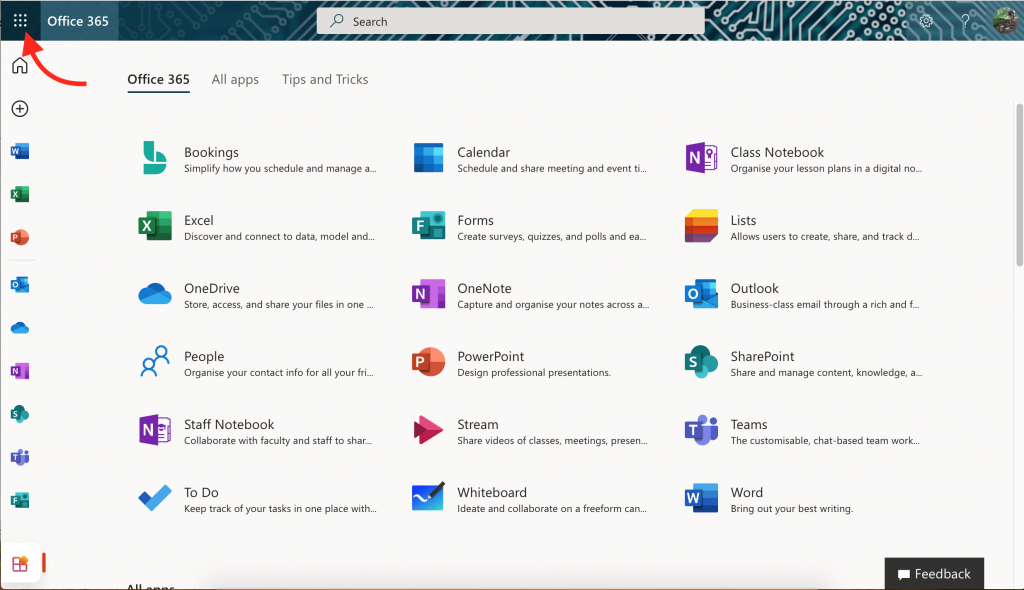
-
Click on “Office 365”
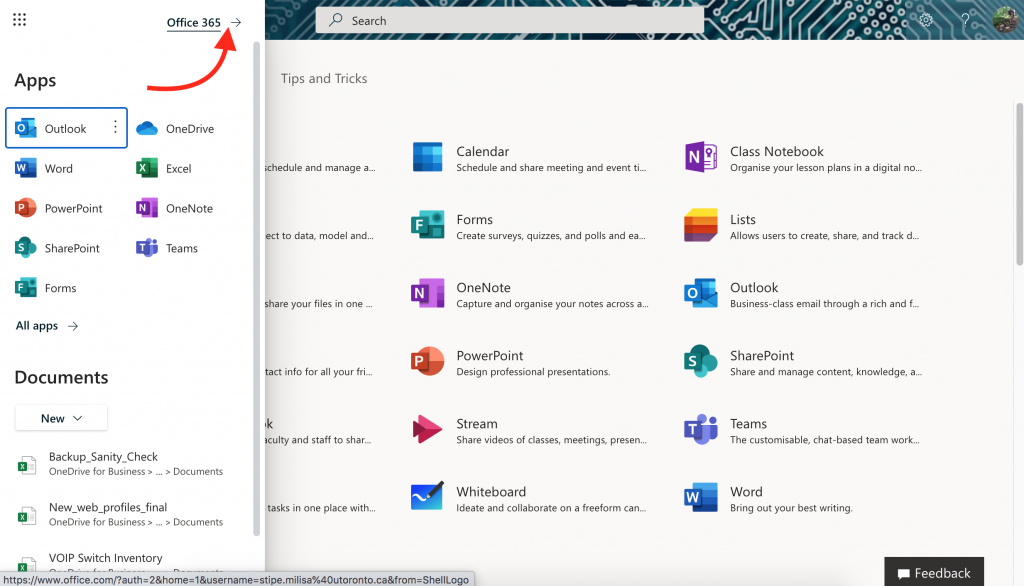
-
Click on “Install Office” then click on “Office 365 apps”. This will initiate the download. Simply open the downloaded file to begin the installation process.
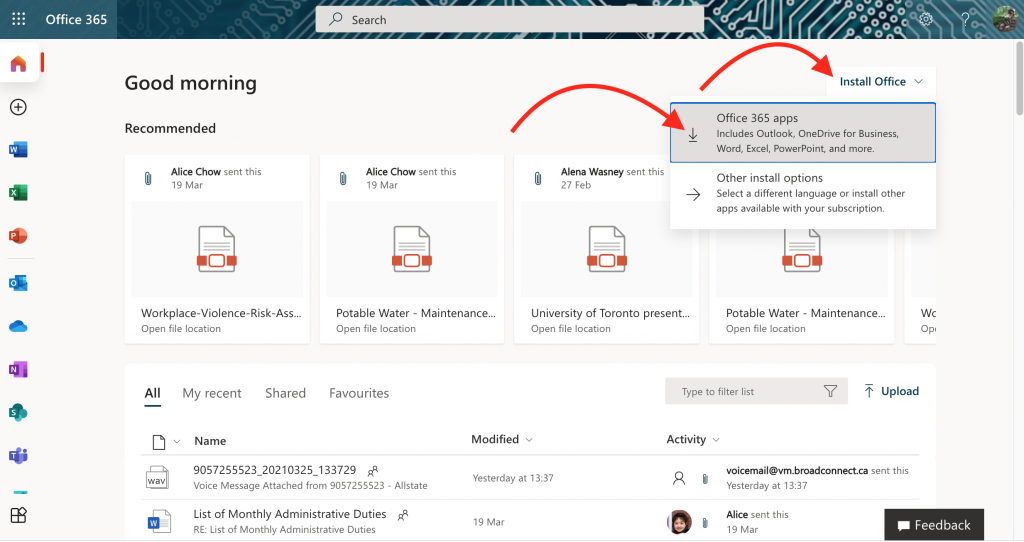
Please note that you must uninstall any previous versions of office or the install will not initiate.
19. Working from Home
Working from home can be challenging. Here are some tips provided but the University of Toronto
While working from home in most cases you will be using remote desktop and also VPN. Here are instructions on how to connect.
How to connect to UTORvpn and Remote desktop
Information security while working form home embodies new perspectives. Please read the University of Toronto Information security remote work guidelines
20. Backups
Back up data from a Linux device to Astro (Nastro) Synology NAS
The most common way to back up data from a Linux device to Synology NAS is to use rsync to make mirrored folders. You may need to mount the folder on the Synology NAS to your Linux device using CIFS or NFS mount beforehand. The command for this is:
[root@www ~]# rsync -av [source_folder] [destination_folder] # 1. Make /home/ mirror to /backupdata/home/

[root@www ~]# rsync -av /home /backupdata/
Alternatively, you can simply execute the following command on your Linux device without having to mount the folder.
rsync -av home/ username@128.100.89.171::rsync/
Data backups can also be encrypted by inserting -e ssh into the command:
rsync -av -e ssh home/ admin@128.100.89.171::rsync/
When rsync is running, it will compare the data between your Synology NAS and Linux device. Only modified files will be transferred to save time.
Back up data for IOS TimeMachine
Perform Time Machine Backup to your Synology NAS
– before you attempt to connect to the backup disk you will have to connect to the backup machine first. Do so by going clicking on “Go” then “connect to server” here you will enter in afp://128.100.89.171:5000 and use your username and password for access (please contact me if you do not have or forgot your username and password stipe.milisa@dunlap.utoronto.ca)
- On your Mac, open System Preferences from the Dock, and click Time Machine.
- Click Select Backup Disk.
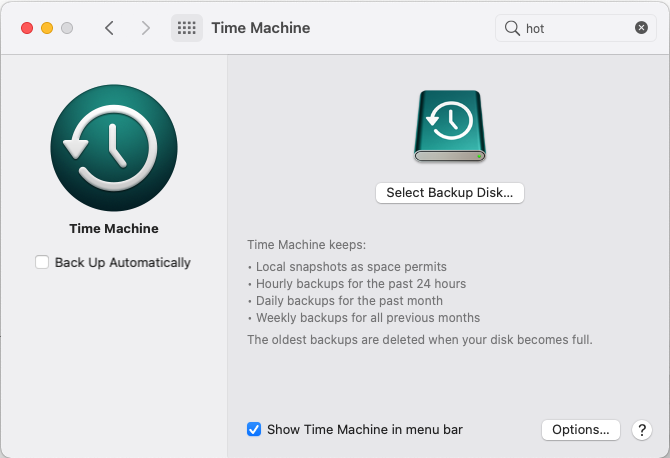
- Choose the shared folder that you created (i.e., Time Machine Folder on “Server name of your Synology NAS.local”) and click Use Disk.
- The system will prompt you to provide your account credentials. Enter the username and password for the user that you have just created and click Connect.
- Time Machine will soon start backing up your data.
21. Data encryption and backup policy
22. Recaptcha Using JotForm
On the Dunlap and DADDAA website we have forms that are used to leave feedback to our department heads. We accomplish this by using third party software (JotForm) to create our forms as well as add the ReCAPTCHA feature to verify the feedback being left is human made and no a spam bot of sorts. Below you will find steps on how to create a form using JotForm and then implementing it onto our website.
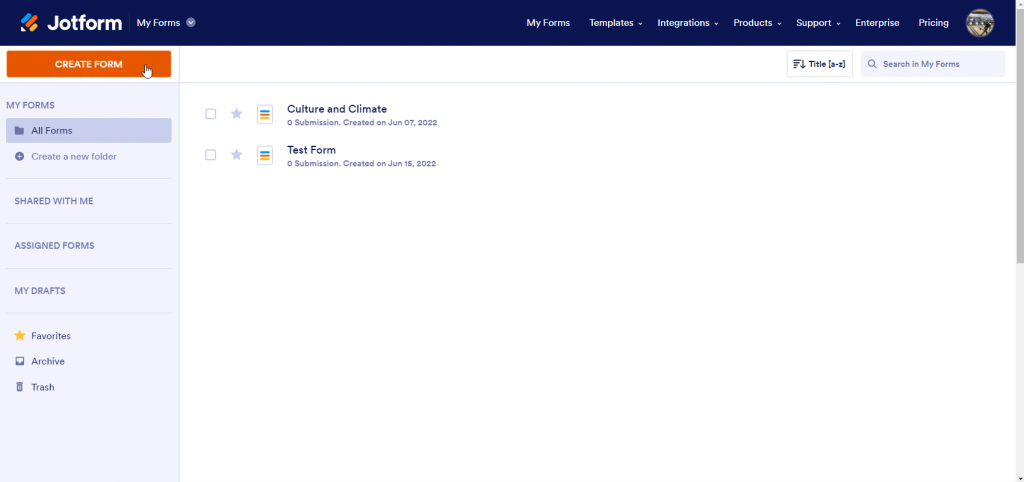
- Visit https://www.jotform.com/ and create yourself using a free account (it is all that is needed currently as it fulfills our demands)
- Click on “Create Form” in the top left corner
-
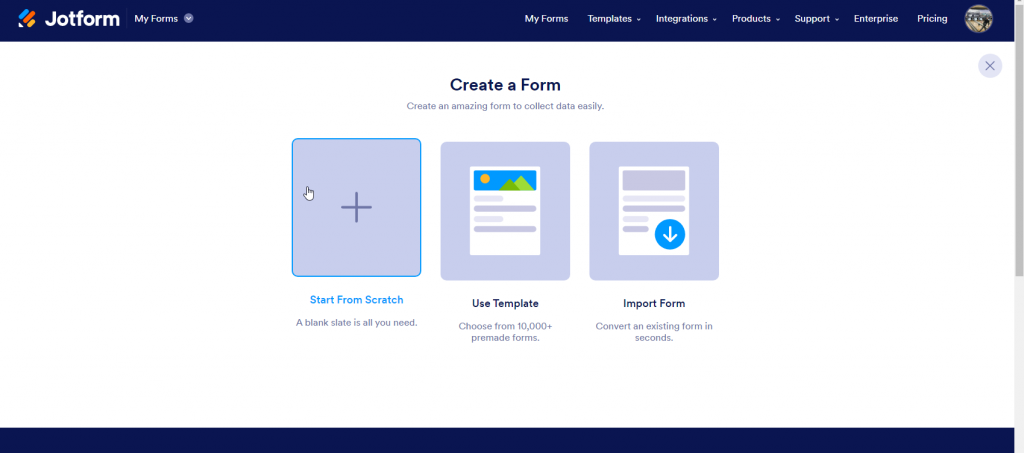
Click on “Start from Scratch”, then on the following page click on “Classic Form”
-
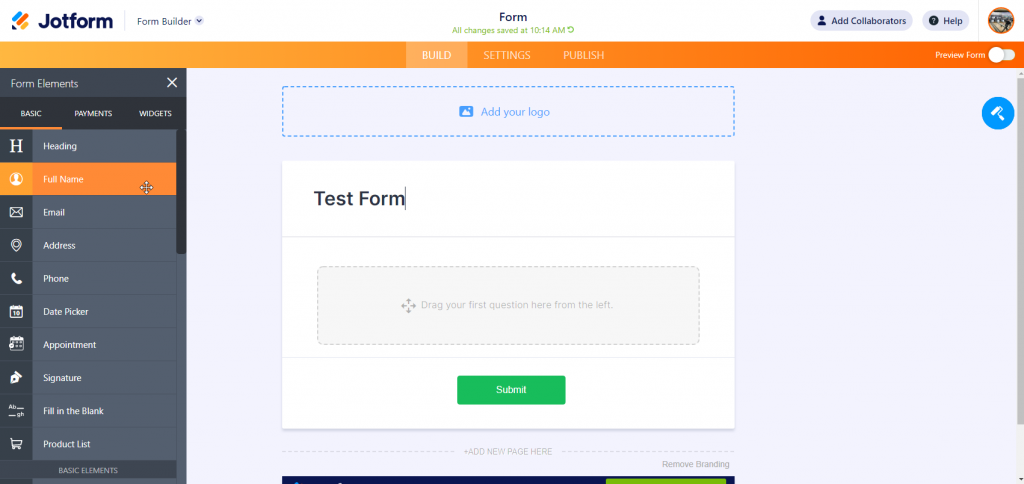
Here you can choose any field to enter and customize it to your needs as well as add the ReCAPTCHA feature. There are many types of ReCAPTCHA however we tend to use the “Robot” ReCAPTCHA as seen in step
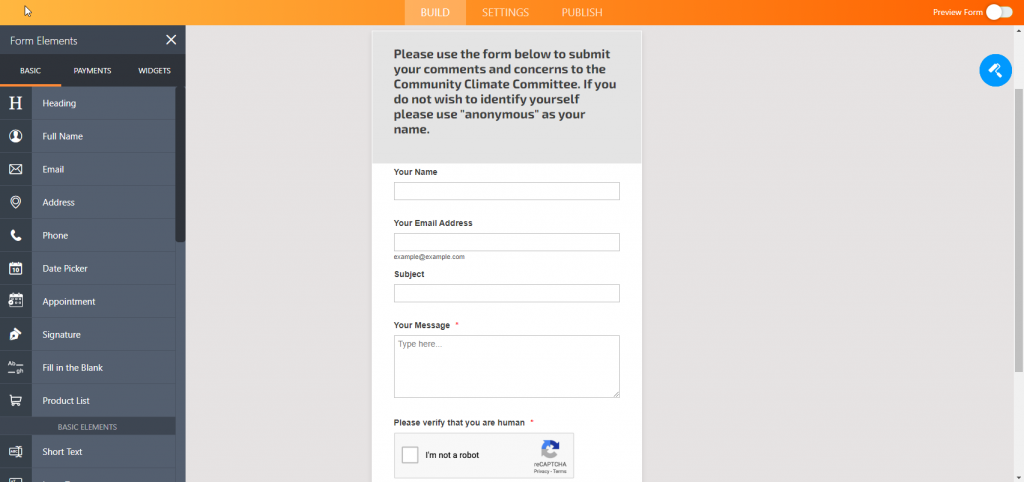
- Below is an example of and existing contact form on one of our sites. When you are satisfied with your form click on “Publish”
-
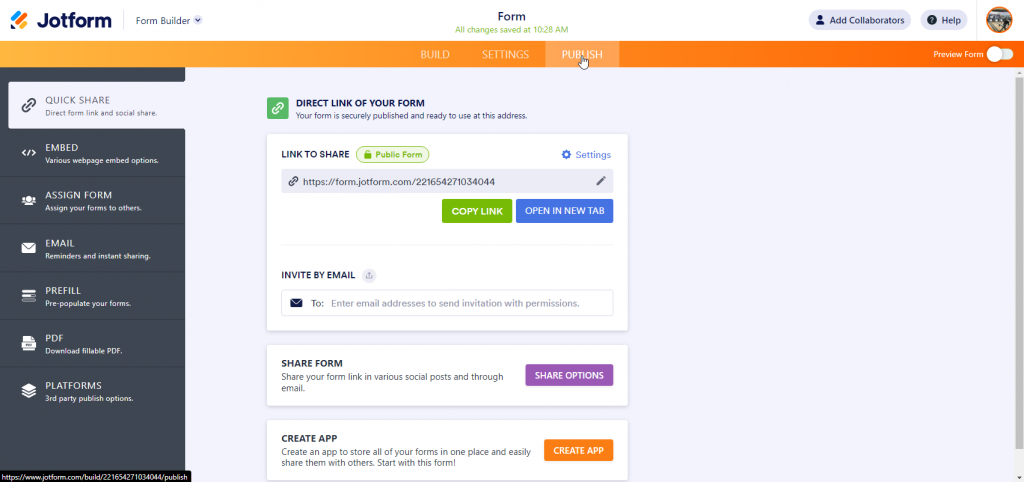
Here you will find the link required to add the contact form to our website. Copy and paste and we will then move onto WordPress
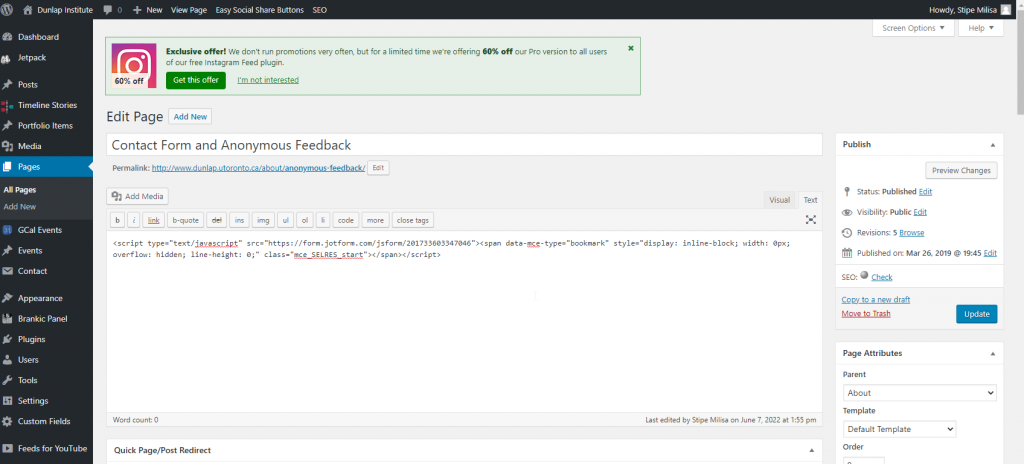
By now you should already be familiar with how to create a new page on our website. Once you have created the page, all that is left to do is copy and paste the link you copied earlier from your JotForm contact form on your WordPress page as shown below. I will past the short code also needed below the image.
23. MS Teams Polycom Phone Information
GETTING STARTED WITH MS TEAMS PHONE
How to login to MS Teams with Polycom VVX Devices:
- To sign in to your phone, select the Sign In button (soft key).

- Open a web browser on your computer or mobile phone and enter this URL:

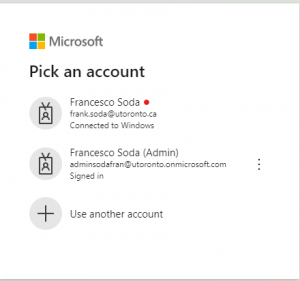
- Choose the account you want to login with.
Enter your U of T email (the same one you use for logging on to Teams)
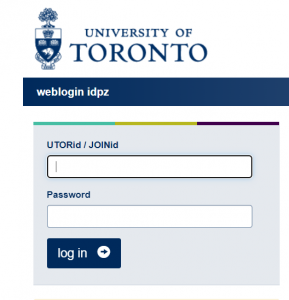
- Enter your UTORid credential and complete the DUA 2FA.
- Click Continue, the phone should reboot in a few seconds and your number will be programmed to this phone. Close the web page once this is done.
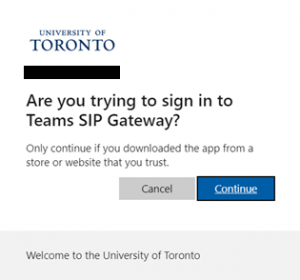
- Once you select your account the following window appears.

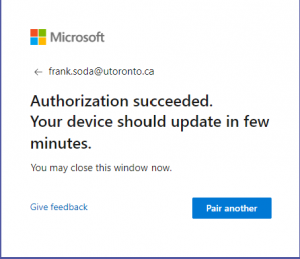
- Type in the pair code from your phone and press the Pair button. The following window appears while phone re-boots.
- Once phone is completed rebooting your number should appear as line one on the phone.

- To Log out choose the more button and signout.
24. MS Teams Phone App Information
Get started with Teams Phone
Initiate voice and video calls from the Teams App
Make voice and video calls to people within your organization or external Teams users.
Easily transition to voice or video calls from Teams Chat.
Add participants at any point in the conversation.
How to call another Teams user
- Select Audio call or Video call directly from a chat, OR
- Select Calls from the left menu in the Teams App, and choose or search for a contact
To add participants
- Select Add people
Call a phone number from the Teams App
Use the Teams desktop app to call phone numbers — that is, phone numbers outside your company.
Easily save phone numbers as contacts, then make a call by searching for your contact by name.
How to call a phone number
- Select Calls from the left menu in the Teams App
- Select Dial a number
- Dial any number on the keypad
- Select Add contact from your call history to save number to contact list
View or add phone numbers as contacts
Easily see contacts from the Calls screen by selecting Contacts.
See all your call history from the Calls screen, including to phone numbers.
Quickly add phone numbers to your contacts.
How to save phone numbers as contacts
- Select Calls from the left menu in the Teams App
- Choose Contacts
- Click Add contact and go from there
- OR click … next to the number in your call history, and select Add contact
Turn a call into a group call
Seamlessly add participants to turn a one-on-one call into a group call.
Record your call or turn on live captions for accessibility.
How to add callers
- From a call, select Show participants icon
- Where it says Invite someone or dial a number, type a name or phone number and press enter
Manage calls in Teams
Forward a call to another team member.
Ensure a seamless call handoff by transferring with consult, which enables a pop-up chat before transferring a call.
Place a user on hold to address other tasks by clicking More Actions … and selecting Hold.
Place a call on one device and pick it up from another by selecting More Actions … and selecting Call Park. You will get a code, which you can enter on the other device.
How to transfer a call with consult
- When on a call, select More actions
- Select Consult, then transfer from the menu
- Search a team member on your network, and select Consult, which will open a chat window
- When ready, select Transfer
Use the Teams App to call from your mobile device On the go? Use the Teams App on your mobile device to receive and make phone calls to and from any number.
Easily switch from your PC to your mobile device by launching the Teams App on your phone—even during a call.
How to use your mobile device to make a Teams call
- Launch Teams on your mobile device
- For iPhone, tap the Calls icon on the bottom of the screen
- For Android, tap the More icon and then select Calls
Get better ways to manage voicemail
Easily set up a voicemail message and add custom messages for out-of-office greetings.
Use new voicemail transcriptions to save time and follow up with customers more quickly.
Retrieve voicemails and transcriptions by selecting Voicemail in the top right of the main Calls screen.
Consolidate all your voicemail messages into Microsoft Teams with cloud voicemail.
Set up your voicemail
- Select Settings, then Calls
- Under Call answering rules, turn If unanswered to Voicemail
- Select the Configure voicemail button to record a custom message, add an outof-office greeting, or customize call answer rules